
In This Article
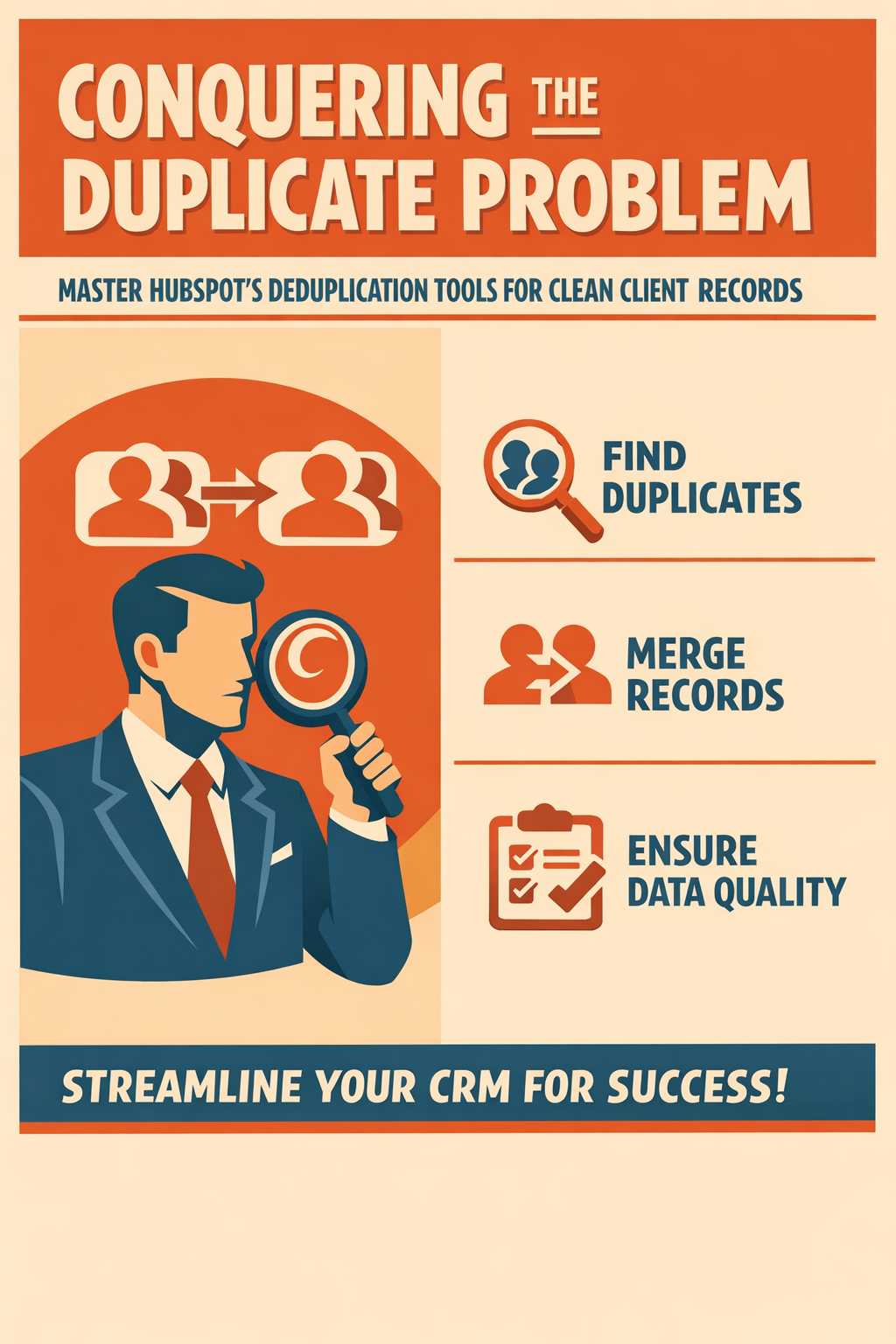
Master HubSpot's Deduplication Tools for Clean Client Records
Duplicate records are the most visible data quality problem—and for financial advisors, they're more than an inconvenience. Multiple records for the same client create compliance risks, embarrassing communications, and broken AI personalization. Here's how to conquer duplicates in HubSpot.
Why Are Duplicates So Problematic for Financial Services?
The Business Cost of Duplicates
Duplicate records impact every aspect of your client relationships:
| Impact Area | Duplicate Effect |
|---|---|
| Client Communication | Same person receives multiple (sometimes conflicting) messages |
| Reporting Accuracy | AUM, client counts, and pipeline metrics are inflated |
| AI Personalization | AI sees partial data, generates inferior insights |
| Compliance | Inconsistent records create audit risk |
| Sales Efficiency | Advisors waste time researching fragmented records |
| Marketing ROI | Duplicate sends waste budget and damage reputation |
Real Example: A wealth management firm sent a "Welcome to the family!" email to a long-standing client because a duplicate record was created during a system migration. The client had been with the firm for 12 years.
Why Duplicates Multiply
Duplicates don't just appear—they're created by:
- Multiple form submissions with name variations (Bob vs. Robert)
- Integration imports without matching logic
- Manual data entry without checking existing records
- Email variations ([email protected] vs. [email protected])
- Company acquisitions merging client databases
How Does HubSpot Detect Duplicates?
AI-Powered Duplicate Detection
HubSpot uses artificial intelligence to identify likely duplicate records by analyzing:
- Name similarity: Matching first/last names with fuzzy logic
- Email address: Domain and local part matching
- Company association: Same company, similar role
- Phone number: Normalized number matching
- Domain: Website/email domain for companies
What the Detection Scores Mean
HubSpot assigns confidence scores to potential duplicates:
- High confidence: Strong match on multiple signals (email + name + company)
- Medium confidence: Partial match requiring review
- Low confidence: Possible match, but may be distinct records
For financial services: Always manually review medium and low confidence matches. Household members often share addresses and last names but are distinct contacts.
How Do I Review and Merge Duplicates?
Step-by-Step Duplicate Resolution
Step 1: Access Duplicate Management
- Navigate to Data Management > Data Quality
- Click the Manage Duplicates tab
- Select Contacts or Companies tab
Step 2: Review Duplicate Pairs
For each duplicate pair, HubSpot shows both records side-by-side, discovery date and time, and confidence indicators.
Step 3: Make a Decision
For each pair, choose:
- Review: Opens merge tool to combine records
- Reject: Marks as "not a duplicate" (records remain separate)
Step 4: Merge Records
When merging:
- Review both records' property values
- Select which values to keep for each property
- Choose the primary record (this record's activity history is preserved)
- Click Merge and review next
Merge Best Practices for Financial Services
Always review before merging:
- Confirm records are truly the same person/company
- Verify you're not merging household members
- Check activity history on both records
Keep the richest record primary:
- The record with more complete data
- The record with longer activity history
- The record created first (for compliance audit trails)
Document complex merges: For compliance purposes, note significant merges in your data governance log.
Can I Automate Duplicate Merging?
Automatic Merging (Beta Feature)
HubSpot offers automatic duplicate merging for high-confidence matches.
To enable automatic merging:
- From Manage Duplicates, click Adjust duplicate settings
- Under Monitor duplicate settings, configure:
- Daily duplicate limit (alerts when exceeded)
- Auto-merge settings (high-confidence only)
- Under Notifications, select users to notify
- Click Save
When to Use Auto-Merge
Recommended for:
- Contact records with exact email matches
- Company records with exact domain matches
- High-volume databases where manual review is impractical
Not recommended for:
- Financial services firms with strict compliance requirements
- Databases with complex household relationships
- Records from recently acquired client bases
Compliance Consideration: Before enabling auto-merge, consult your compliance team. Some regulations require documentation of record changes.
How Do I Prevent Future Duplicates?
Prevention Strategy 1: Form Configuration
Configure forms to prevent duplicate creation:
- Navigate to Marketing > Forms
- Edit your form
- Under Options, find duplicate handling settings
- Enable "Update existing contacts instead of creating new"
Best practice: Use email as the unique identifier for matching.
Prevention Strategy 2: Integration Settings
Review how integrations handle existing records:
- Check sync settings in Settings > Integrations
- Verify matching logic (email, name, custom identifier)
- Configure update vs. create behavior
- Enable duplicate detection if available
Prevention Strategy 3: Data Entry Standards
Create clear guidelines for manual entry:
Entry checklist:
- Search for existing contact BEFORE creating new
- Use standard name formats (First Name: John, not JOHN or john)
- Always include email address
- Associate with company record immediately
Prevention Strategy 4: Import Preprocessing
Before importing data:
- Deduplicate in your spreadsheet first
- Match against existing HubSpot records
- Include email addresses for matching
- Use HubSpot's import duplicate handling
What About Company Duplicates?
Company Duplicate Challenges
Company duplicates are often harder to resolve because:
- Legal names vary (ABC Corp vs. ABC Corporation vs. ABC Inc.)
- Subsidiaries may or may not be separate records
- Acquired companies retain historical records
- DBA names create confusion
Company Deduplication Strategies
Step 1: Standardize naming conventions
- Decide: Do you include "Inc," "LLC," etc.?
- Document your standard
- Apply consistently
Step 2: Use domain as primary identifier
- Company domain is more reliable than name
- Configure integrations to match on domain
Step 3: Handle parent-child relationships
- Create clear rules for subsidiaries
- Use parent company field for hierarchy
- Don't merge subsidiaries into parents (unless strategic)
Step 4: Document M&A scenarios
- When clients have company changes, update records
- Keep historical company associations for audit trail
- Use company merge feature strategically
How Do I Handle Complex Household Duplicates?
The Household Challenge
Financial advisors often serve multiple family members:
- Spouses with shared addresses
- Adult children at same household
- Multi-generational wealth families
These are NOT duplicates but can appear as such.
Household Best Practices
Distinguish individuals:
- Always collect email (unique identifier)
- Use relationship properties (Spouse of, Child of)
- Maintain separate contact records
Group households:
- Use company records for households (optional)
- Create custom household association
- Use same-household tags for segmentation
Prevent false positive merges:
- Train team on household structure
- Review medium-confidence duplicates carefully
- Document household relationships
Frequently Asked Questions
How many duplicates are acceptable?
Industry benchmark: Less than 2% of total contacts. For financial services with compliance requirements, aim for less than 1%.
What happens to associated data when records merge?
When you merge:
- Activity history from both records is preserved
- Deals, tickets, and tasks transfer to merged record
- List memberships combine
- Workflow enrollments continue from primary record
Can I undo a merge?
No. Merges in HubSpot are permanent. This is why manual review is critical for financial services. If you merge incorrectly, you must manually recreate the deleted record.
Should I delete duplicates instead of merging?
Generally no. Merging preserves activity history and associations. Deletion loses data permanently. Only delete if:
- Record is completely empty
- Record was created in error
- Compliance requires data removal
How do I handle duplicates from a major data migration?
For large-scale deduplication:
- Export all contacts to spreadsheet
- Use Excel/Python deduplication tools
- Create master record list
- Use HubSpot API for bulk merge (or work with a partner)
- Document the process for compliance
Your Day 4 Action Items
- Review your current duplicate count from the Data Quality dashboard
- Resolve 20-30 duplicates manually to understand your patterns
- Document your duplicate sources (forms, integrations, manual)
- Implement one prevention measure (form settings, entry standards)
- Decide on auto-merge strategy (enabled or manual-only)
What's Next?
Tomorrow (Day 5): We explore data enrichment strategies—how to fill gaps in your HubSpot data using native enrichment, third-party sources, and AI-powered tools. For financial services, enriched data enables better personalization and more effective client relationships.
Need Help With Large-Scale Deduplication?
Vantage Point specializes in HubSpot data migrations and cleanup for financial services firms. Our approach includes:
-
- Pre-migration duplicate analysis
- Custom matching logic for complex scenarios
- Bulk deduplication with audit documentation
- Post-cleanup quality verification
About Vantage Point
Vantage Point specializes in helping financial institutions design and implement client experience transformation programs using Salesforce Financial Services Cloud. Our team combines deep Salesforce expertise with financial services industry knowledge to deliver measurable improvements in client satisfaction, operational efficiency, and business results.