
In This Article
Unlock the full potential of your credit union's marketing strategy with HubSpot's innovative tools and features.
Master the Tools That Transform CRM Data Into AI Fuel
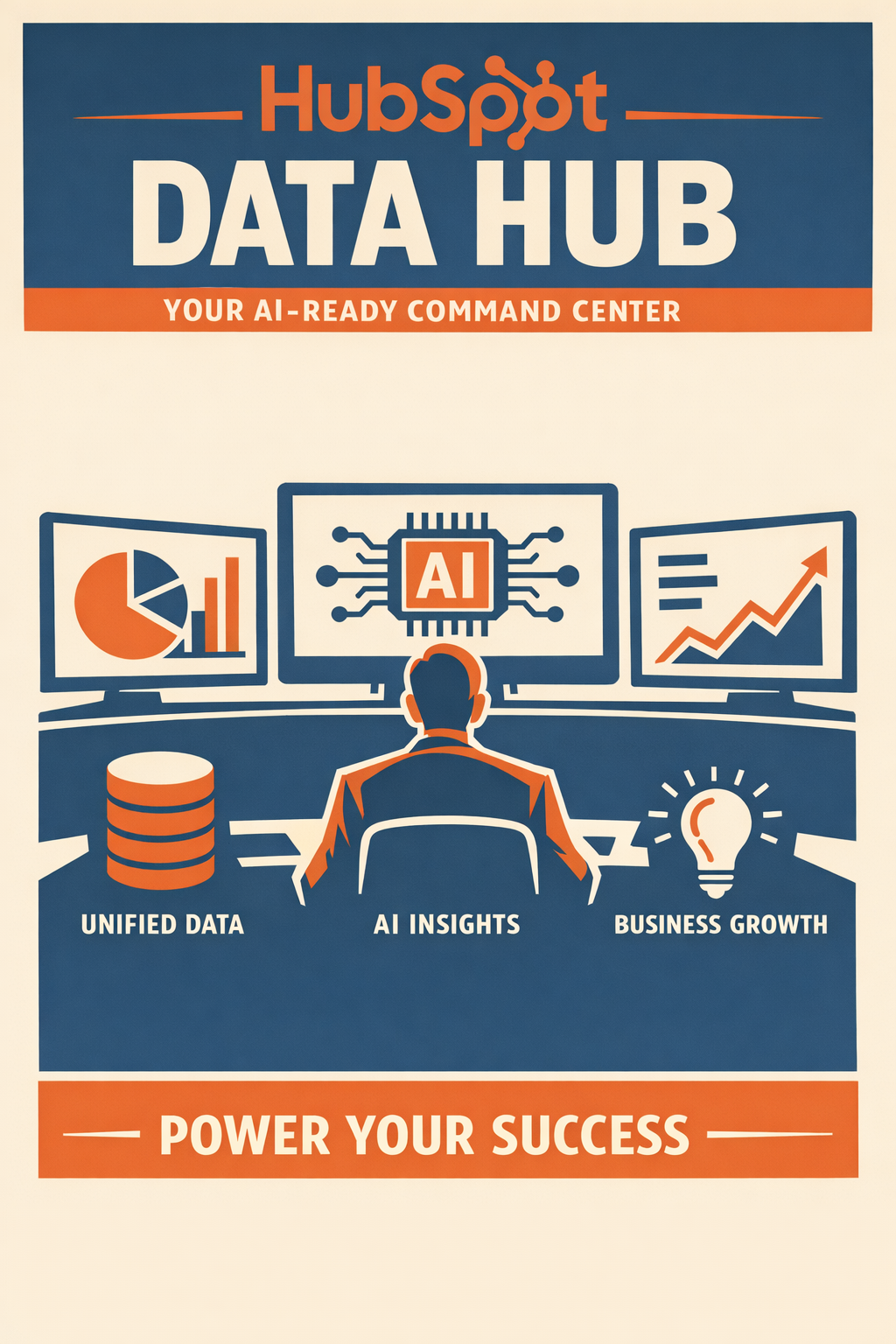
HubSpot's Data Hub replaced Operations Hub in Fall 2025, bringing AI-powered data management tools designed specifically to prepare your CRM for the AI era. Here's how to use these capabilities to transform your financial services data.
What Is HubSpot Data Hub?
HubSpot Data Hub is the central hub for connecting, cleaning, and actioning your customer data. Launched at INBOUND 2025, Data Hub replaced the former Operations Hub and introduced powerful AI-driven capabilities including:
- Data Studio: AI-powered data transformation and unification
- Data Quality tools: Automated detection and resolution of data issues
- External data connections: Integration with third-party data sources
- Smart Insights: AI-surfaced patterns and recommendations
For financial services firms, Data Hub represents a fundamental shift from manual data management to AI-assisted data operations.
Why This Matters: Most businesses make 100% of their decisions with only 20% of their data. Data Hub brings together structured, unstructured, and external data to give your team—and your AI—unified, clean, and complete context.
Data Hub vs. Operations Hub: What Changed?
If you previously used Operations Hub, here's what's new:
| Capability | Operations Hub | Data Hub |
|---|---|---|
| Data sync | Manual configuration | AI-assisted mapping |
| Data cleaning | Workflow-based | AI-powered automation |
| Duplicate management | Rule-based detection | Intelligent detection + auto-merge |
| Data transformation | Code-based | Natural language + AI |
| External data | Integration apps | Native Data Studio connections |
| Insights | Manual reporting | AI-surfaced recommendations |
Key upgrade: Data Hub shifts from "you configure everything" to "AI assists you throughout."
How Do I Access Data Hub Features?
Navigating to Data Quality
- In your HubSpot account, click Data Management in the main navigation
- Select Data Quality from the dropdown
- You'll see the Data Quality overview page with tabs for:
- Overview (summary and recommendations)
- Manage Duplicates
- Formatting Issues
- Data Enrichment
- Property Insights
Data Hub Subscription Requirements
Data Hub features are available across subscription tiers:
| Feature | Starter | Professional | Enterprise |
|---|---|---|---|
| Data Quality overview | ✓ | ✓ | ✓ |
| Duplicate detection | ✓ | ✓ | ✓ |
| Formatting issues | ✓ | ✓ | ✓ |
| Bulk issue resolution | ✓ | ✓ | ✓ |
| Automation rules | — | ✓ | ✓ |
| Property anomaly detection | — | ✓ | ✓ |
| Data Studio (full) | — | ✓ | ✓ |
| Duplicate alerts | — | ✓ | ✓ |
Data Studio: AI-Powered Data Transformation
What Is Data Studio?
Data Studio uses AI to turn scattered context into unified, structured data. Instead of writing complex formulas or code, you can transform data using natural language or simple column additions.
How Data Studio Works
Traditional approach:
- Export data from HubSpot
- Clean in Excel/Google Sheets
- Write formulas to transform
- Re-import with manual mapping
Data Studio approach:
- Create a new column in Data Studio
- Describe what you want (e.g., "Extract domain from email address")
- AI generates and applies the transformation
- Data is automatically synced across HubSpot
Data Studio Use Cases for Financial Services
| Use Case | Traditional Method | Data Studio Method |
|---|---|---|
| Standardize phone formats | RegEx formulas, manual cleanup | "Format all phone numbers as (XXX) XXX-XXXX" |
| Extract company from email | Domain lookup + manual research | "Identify company name from email domain" |
| Categorize AUM tiers | IF/THEN formulas | "Categorize AUM into High/Medium/Low tiers" |
| Enrich job titles | Manual research | "Standardize financial services job titles" |
Getting Started with Data Studio
- Navigate to Data Management > Data Studio
- Select the object type (Contacts, Companies, Deals)
- Click Add Column
- Choose AI-Generated for intelligent transformation
- Describe your transformation in plain language
- Preview results and apply
Pro Tip: Start with a small segment (100-500 records) to validate AI transformations before applying to your full database.
Data Quality Dashboard: Your Daily Command Center
Overview Tab: The Executive Summary
The Data Quality overview provides at-a-glance metrics:
Summary Section:
- Duplicate issues: Percentage change in duplicates since selected date range
- Formatting issues: Percentage change in formatting problems
- Quick links to view and resolve issues
Recommended Actions Section:
- Priority issues requiring attention
- Unused workflows to review
- Data quality digest setup
Property Insights Section:
- Total properties and issues over time
- Visualization of duplicates, no-data, and unused properties
Setting Up Your Data Quality Digest
Enable weekly email summaries of your data quality status:
- From the Overview tab, click Set it up under Data Quality digest
- In Notification settings, expand Data Quality
- Check the Email checkbox
- You'll receive weekly updates on issues and changes
Why this matters for financial advisors: Data quality can degrade quickly when you're focused on client service. Weekly digests ensure problems don't compound unnoticed.
What Are the Most Common Data Quality Issues?
Issue 1: Duplicate Records
What it looks like: Multiple contact or company records for the same person/entity
Why it happens:
- Form submissions with slight name variations
- Integration imports without deduplication
- Manual entry without checking existing records
HubSpot detection: AI analyzes name, email, domain, and other signals to identify likely duplicates
Financial services example: A prospect submits a webinar form as "Bob Johnson" and later downloads a whitepaper as "Robert Johnson" with a different email. Two records exist for the same person.
Issue 2: Formatting Inconsistencies
What it looks like: The same data type formatted differently across records
Common examples:
- Phone: (512) 555-1234 vs. 512-555-1234 vs. 5125551234
- State: Texas vs. TX vs. Tx
- Names: JOHN SMITH vs. john smith vs. John Smith
HubSpot detection: AI identifies formatting patterns and flags outliers
Why it matters: Inconsistent formatting breaks segmentation, automation triggers, and personalization tokens.
Issue 3: Missing Data
What it looks like: Key properties with no values
High-impact missing data for financial services:
- Email address (marketing reach)
- Phone number (sales contact)
- Company name (account-based strategies)
- Job title (personalization)
- AUM/Revenue (segmentation)
HubSpot detection: Property insights show fill rates and identify systematically empty fields
Issue 4: Outdated Information
What it looks like: Data that was once accurate but no longer reflects reality
Examples:
- Old job titles after promotions
- Previous company after job changes
- Invalid email addresses (bounced)
- Disconnected phone numbers
Challenge: HubSpot can detect formatting issues, but outdated information often requires external enrichment sources.
How Do I Use AI to Fix Data Quality Issues?
Automated Issue Resolution
For formatting issues, HubSpot's AI can automatically apply fixes:
- Navigate to Data Management > Data Quality > Formatting Issues
- Review the issues table
- For individual records:
- Click Accept to apply the suggested fix
- Click Reject to dismiss the suggestion
- Click More > Fix and automate to create a rule for future records
- For bulk resolution (Professional/Enterprise):
- Select multiple records using checkboxes
- Click Accept to apply fixes to all selected
Creating Automation Rules
Prevent future formatting issues:
- From Formatting Issues, click Actions > Automation
- Set rules for automatic correction:
- Capitalize names properly
- Standardize phone number format
- Normalize state abbreviations
- Lowercase email addresses
- Click Save
Important: Automated rules apply to new records and updates. Existing issues still need manual or bulk resolution.
Property Insights: Understanding Your Data Landscape
Why Property Insights Matter
Over time, HubSpot accounts accumulate properties—some essential, some redundant, some never used. Property Insights helps you understand:
- Which properties have data quality issues
- Which properties are unused
- How properties are used across HubSpot (forms, workflows, lists)
Reviewing Properties to Review
- Navigate to Data Management > Data Quality > Property Insights
- Review the Properties to review table
- For each property, you can:
- View details (usage across HubSpot)
- Export property history
- Hide (remove from quality totals)
- Archive (retire unused properties)
Financial Services Property Audit Questions
Ask these questions about each property:
- Is this property actively used? Check fill rate and usage locations
- Is this property accurately filled? Check for default or placeholder values
- Is this property redundant? Multiple properties capturing similar data
- Is this property compliant? Sensitive data that shouldn't be stored
Smart Insights: AI-Surfaced Recommendations
What Are Smart Insights?
Smart Insights automatically analyze your CRM data and surface:
- Patterns: Trends in data quality over time
- Anomalies: Unusual changes that may indicate problems
- Recommendations: Suggested actions to improve data quality
Using Smart Insights Effectively
- Review Smart Insights weekly (or via digest email)
- Investigate anomalies promptly—sudden changes often indicate integration issues
- Prioritize recommendations by business impact
- Track improvement over time
Frequently Asked Questions
How is Data Hub different from third-party data cleaning tools?
Data Hub is native to HubSpot, meaning:
- No data export/import required
- Real-time synchronization
- Access to all HubSpot context (activity, engagement, etc.)
- Seamless integration with workflows and automation
Third-party tools may offer deeper cleaning capabilities but require data movement and ongoing synchronization.
Can Data Studio connect to external financial services data sources?
Yes, Data Studio can connect to external data sources for enrichment. However, for sensitive financial data (custodian feeds, planning software), work with your compliance team to ensure appropriate data handling.
How often should I review the Data Quality dashboard?
- Daily: Quick overview check (2 minutes)
- Weekly: Detailed review of new issues (15-30 minutes)
- Monthly: Property insights and trend analysis (1 hour)
- Quarterly: Comprehensive audit (half-day)
What permissions do I need to use Data Quality tools?
Users need Data quality tools access permission plus View permissions for relevant objects. To make changes, users also need Edit permissions for contacts and companies.
Your Day 2 Action Items
- Navigate to Data Quality dashboard and explore each tab
- Set up your Data Quality digest for weekly email updates
- Review Property Insights to identify unused properties
- Experiment with Data Studio on a small test segment
What's Next?
Tomorrow (Day 3): We'll conduct a comprehensive Data Quality Audit of your HubSpot CRM. You'll follow a step-by-step process to assess your current data quality status and establish baseline metrics for improvement.
Need Help Configuring Data Hub?
Vantage Point's HubSpot specialists can configure Data Hub for your financial services firm, including:
- Custom automation rules for your data standards
- Integration setup with your existing tech stack
- Staff training on data quality best practices
This post is part of Vantage Point's 7-day series on HubSpot Data Quality & AI Readiness for Financial Services.
About Vantage Point: Vantage Point delivers AI-driven Salesforce and HubSpot solutions for financial services firms. Our 100% certified team helps wealth managers, RIAs, and financial advisors transform their technology into growth engines.
About Tierney Burklow
Expert consultant at Vantage Point, specializing in CRM implementations and digital transformation for financial services.